Git can be a little confusing to set up at first, but once you have it up and going it’s great. It’s also a very popular tool, so it’s a great thing to learn for the corporate world as well.
Generating an SSH Authentication Key
Run ssh-keygen. Press enter at all of the prompts. See notes for information regarding the passphrase.
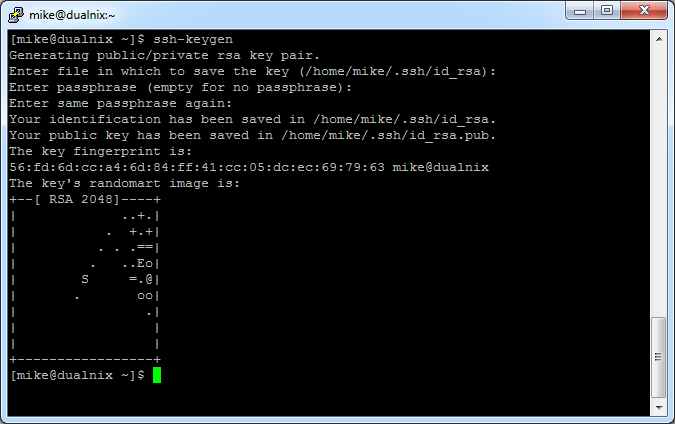
You should find the following files in your ~/.ssh directory.

Copying your public key to Github
You’re going to copy the contents of ~/.ssh/id_rsa.pub to your account set on Github. This is the public part of the key generated by ssh-keygen. The contents of this file, for me, will look similar to this:
ssh-rsa <long-string-of-characters> mike@dualnix
where <long-string-of-characters> is (obviously) a long character string.
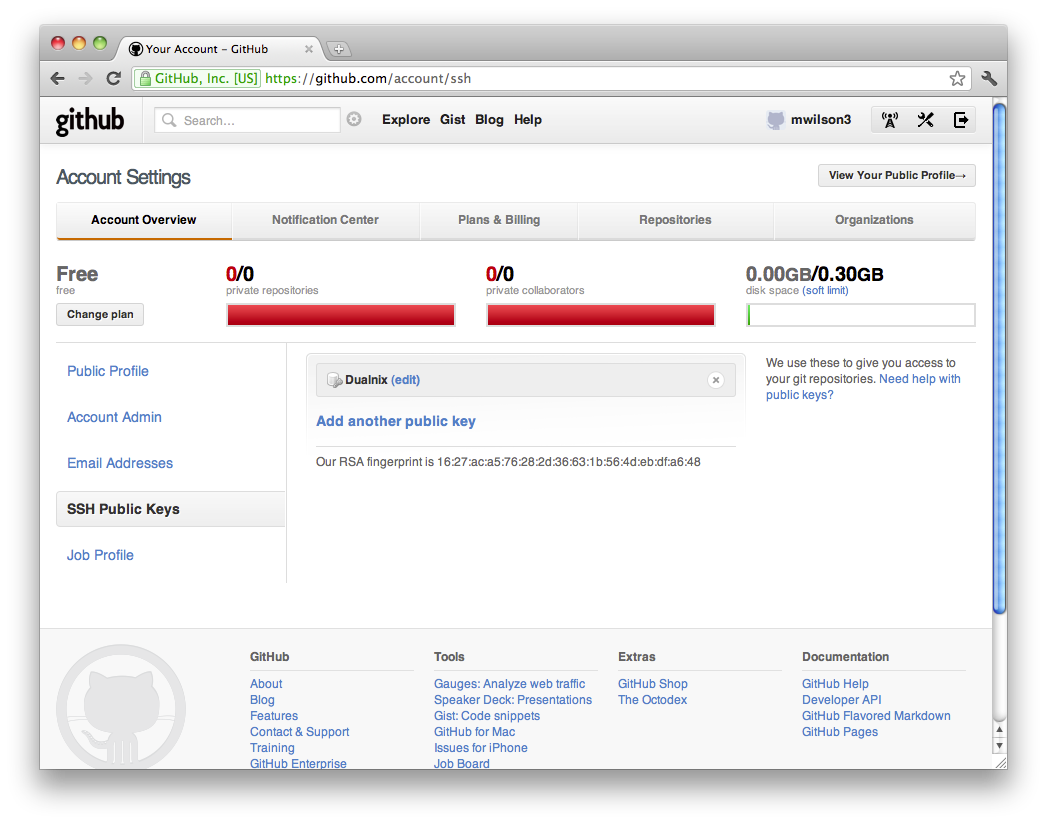
Login to Github and click on “account settings” in the upper right.

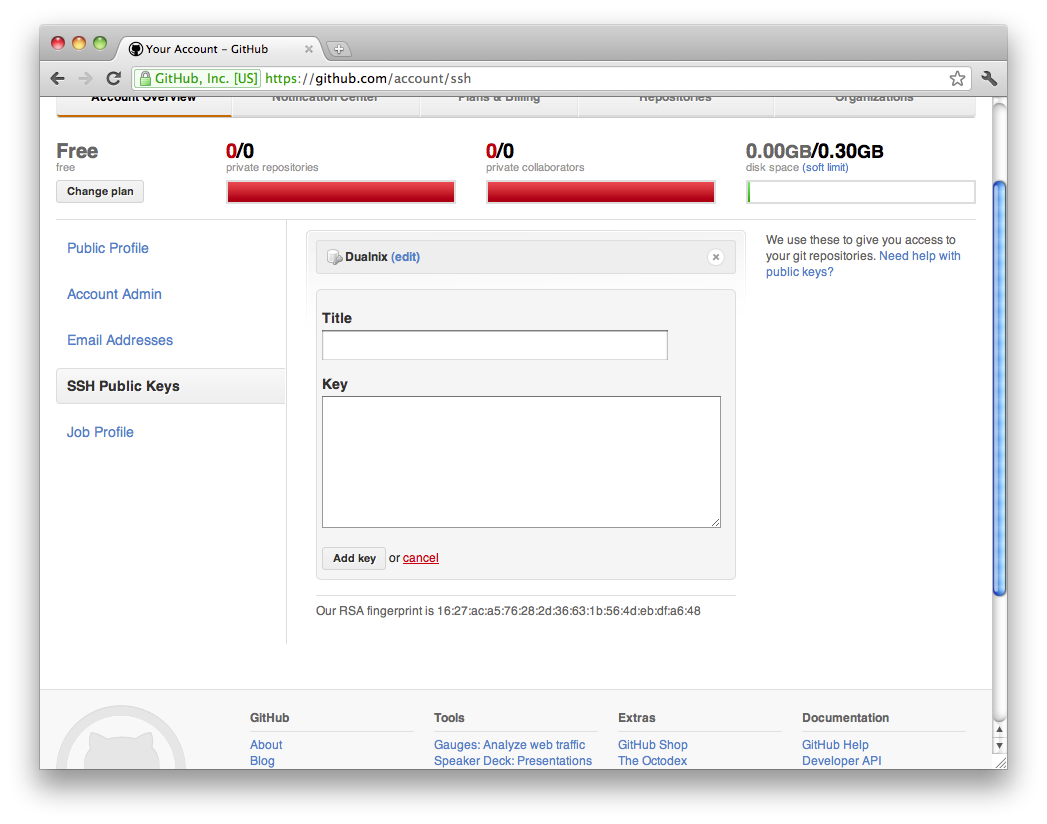
After that, click on SSH Public Keys on the left. You’ll want to add a key here.
Copy the contents of your id_rsa.pub file into the key field and click “Add Key.” Now you should be done!
Notes
- You can choose to use a passphrase if you’d like, but I recommend not entering one for this – otherwise, every time you push to the Git repository you’ll need to enter in the passphrase. You can fix that by following these directions, but I recommend against it for the purposes of this class. Just easier.